
Appearance
Signing In
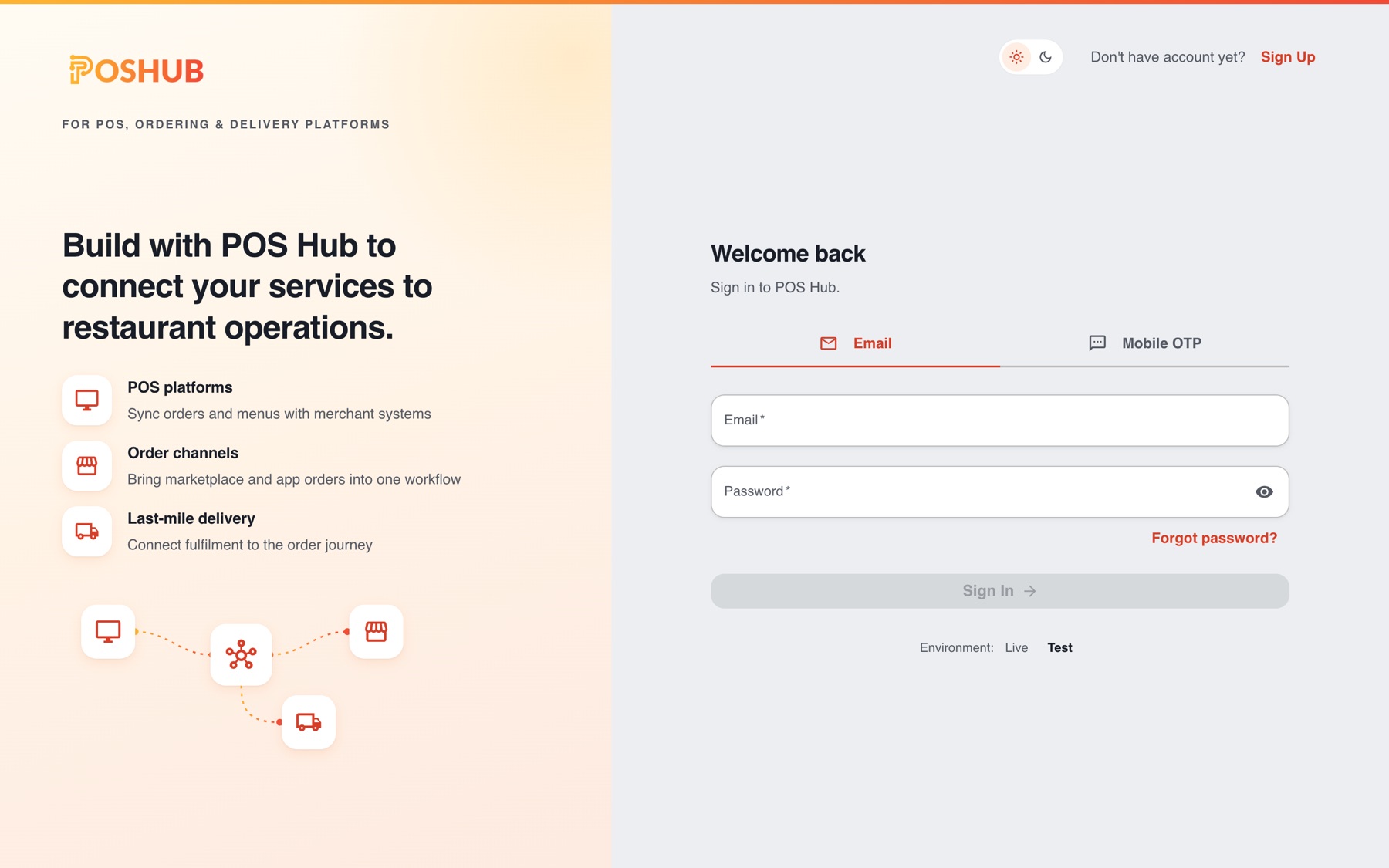
Go to POS Hub. You can sign in with Google, with your email address and password, or with a one-time password (OTP) sent to your mobile.
With Google
- Select Continue with Google.
- Choose your Google account and approve the request on Google's page.
- You return to POS Hub, signed in.
The first time you continue with Google, POS Hub creates your login from your Google account. You don't need a password or a mobile number, and your email address is already verified.
If you already have a POS Hub login with the same email address, POS Hub asks you to confirm it's you before connecting Google:
- Sign in with that login's Password.
- Select Connect Google.
After that you can sign in either way. POS Hub never connects Google to an existing login without this confirmation.
TIP
Continue with Google only appears where it is enabled. If you don't see it, sign in with your email or mobile.
With your email
- Keep the Email tab selected.
- Enter your Email and Password.
- Select Sign In.
Forgotten your password? Select Forgot password? and follow the link we email you. If you created your login with Google, it has no password yet: keep using Continue with Google, or use the emailed link to set a password as an extra way to sign in.
With a mobile OTP
- Select the Mobile OTP tab.
- Enter the Mobile number on your POS Hub login and select Send OTP.
- Enter the OTP from the text message and select Verify OTP.
Didn't get the OTP? Select Resend OTP, or Change number to correct the number.
Connecting or disconnecting Google
Open your Profile and find Connected sign-in providers.
- Select Connect next to Google to add it as a way to sign in. You choose your Google account and return to your profile.
- Select Disconnect to remove it. You must keep another way to sign in, such as a password or mobile number, so POS Hub won't let you disconnect your only sign-in method.
A Google account can only be connected to one POS Hub login.
Live and Test environments
Below the form, Environment switches between Live (your real businesses) and Test (for trying things out, such as building and testing an integration). Each environment has its own logins and businesses.
After signing in
POS Hub opens your dashboard. If you haven't finished setting up your first business, you return to where you left off; see Sign Up.
Don't have a login yet? Select Sign Up at the top of the page.