
Appearance
View / Modify Modifier
The Modifier Edit Page in POSHUB allows you to update the properties of an existing modifier (an extra/option added to items), configure availability, pricing, and link nested modifiers for advanced customization.
🔹 Navigation to Modifier Group Edit Page**
Go to Locations → Menus → Select Menu.
Open an item by clicking Edit.
If the item has modifier groups mapped, they will be listed in the Modifier groups section on the Item Edit Page.
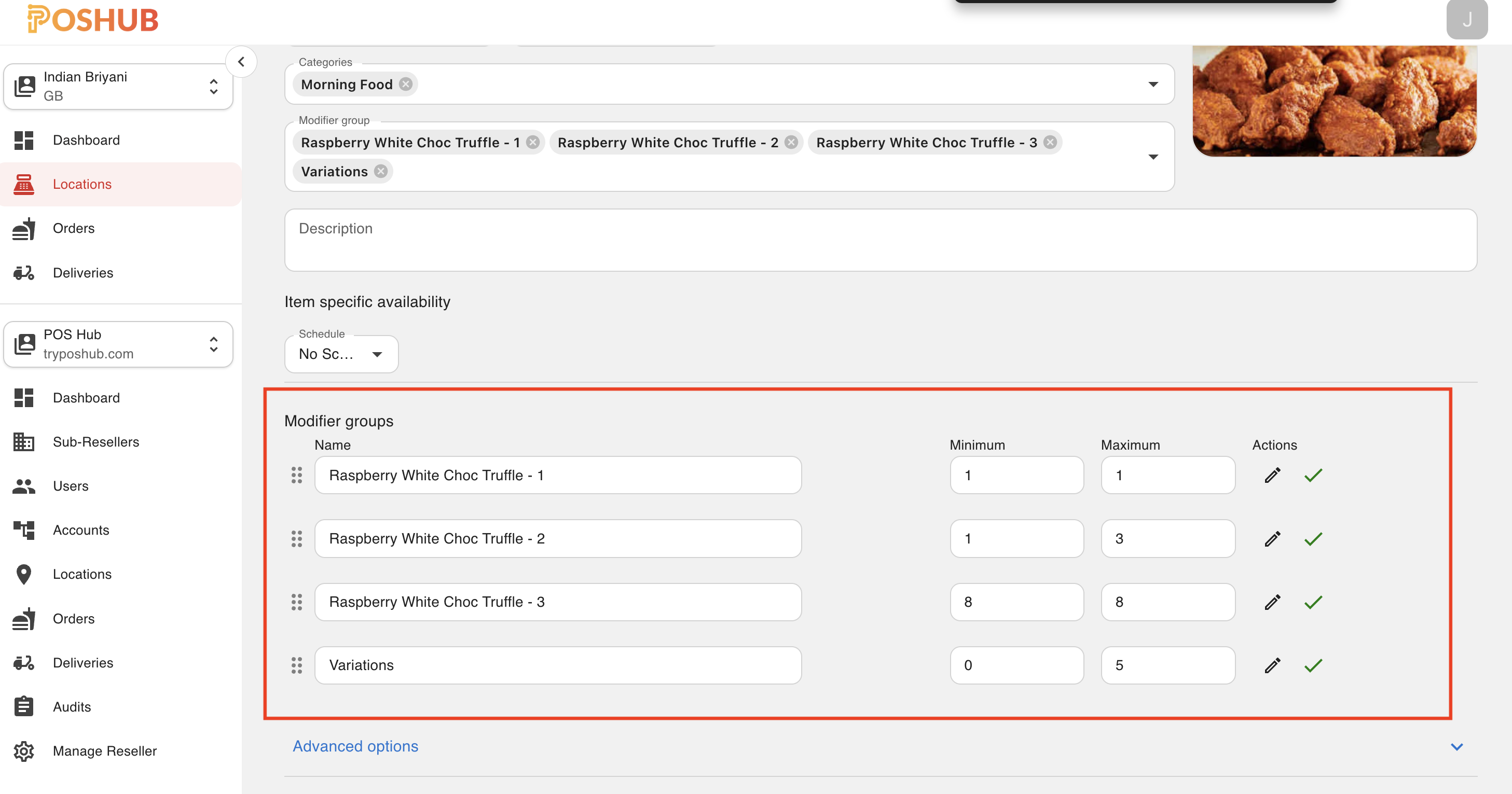
Beside each modifier group, there is an Edit icon (✏️). Clicking this will redirect you to the Modifier Group Edit Page.
If the Modifier groups has modifiers mapped, they will be listed in the modifiers section on the modifier group edit page.
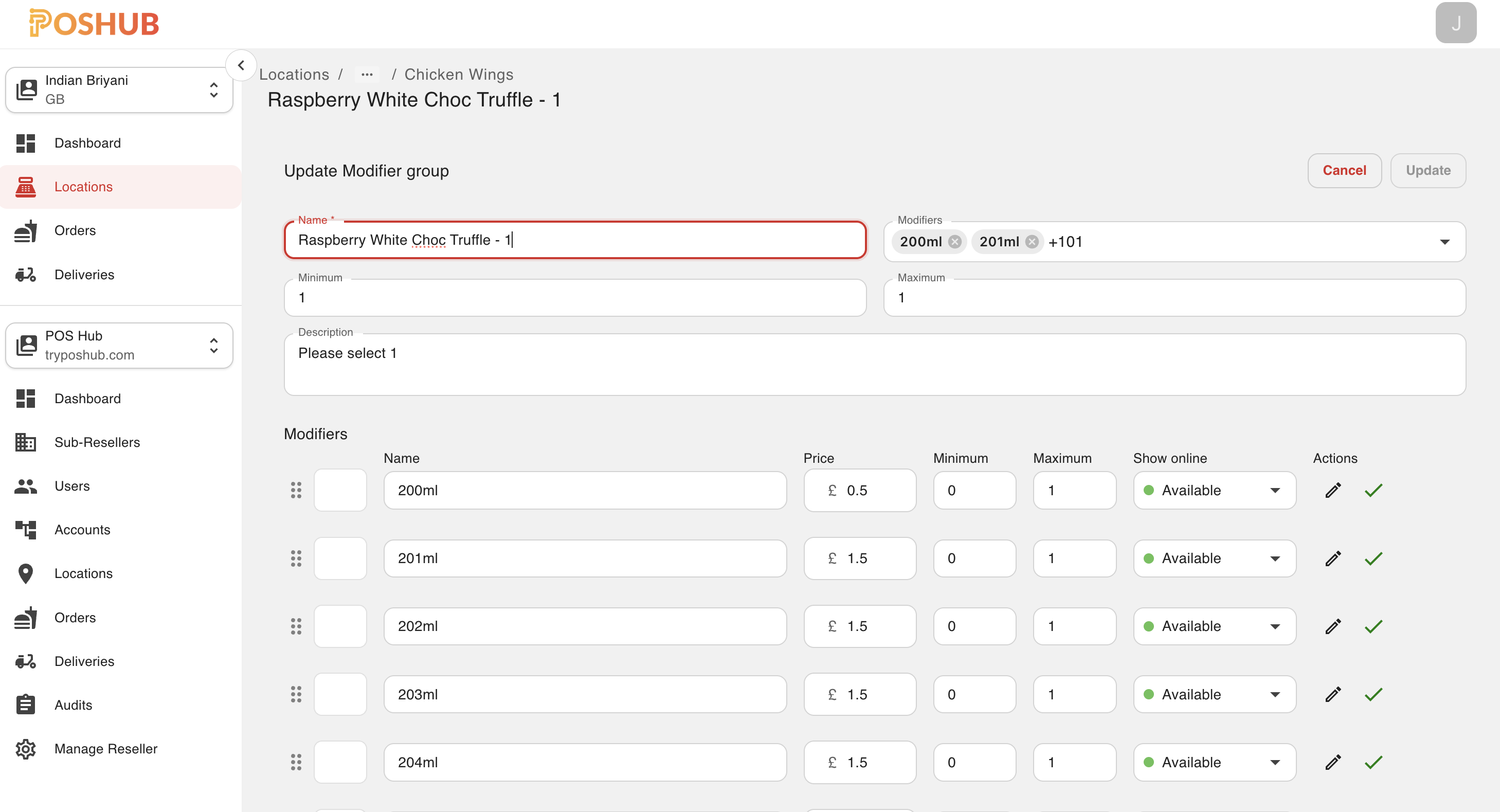
Beside each modifier, there is an Edit icon (✏️). Clicking this will redirect you to the Modifier Edit Page.
After editing, clicking the Save / Cancel button will return you to the Modifier Group Edit Page.
🔹 Editable Sections
1. Basic Information
Name* → Update the modifier name (e.g., Vienna Addon 1).
Status → Toggle availability: 🟢 Available 🔴 Sold out
Description → Add optional notes or details about the modifier.
2. Pricing
Price → Define or update the default price of the item. In Store Price - to offer a different price for “In Store” orders.
3. Minimum / Maximum
Define how many modifiers must be selected by the customer:
- Minimum: The minimum number of modifiers required.
- Maximum: The maximum number of modifiers allowed.
4. Advanced Settings
Collapsible section with toggles:
- Contains alcohol → Toggle (Off)
- Contains tobacco → Toggle (Off)
- Is bike friendly → Toggle (On)
- Is tax included → Toggle (On)
5. Nutritional Information
Fields for nutritional values (with info icons for help):
- Kilojoules
- Salt
- Carbohydrates
- Spiciness, etc..
6. Nested Modifiers
If the Modifier has the nested modifiers then this option will be available to view / edit the nested modifiers.
Nested modifiers allow linking one modifier group inside another for advanced item customization.
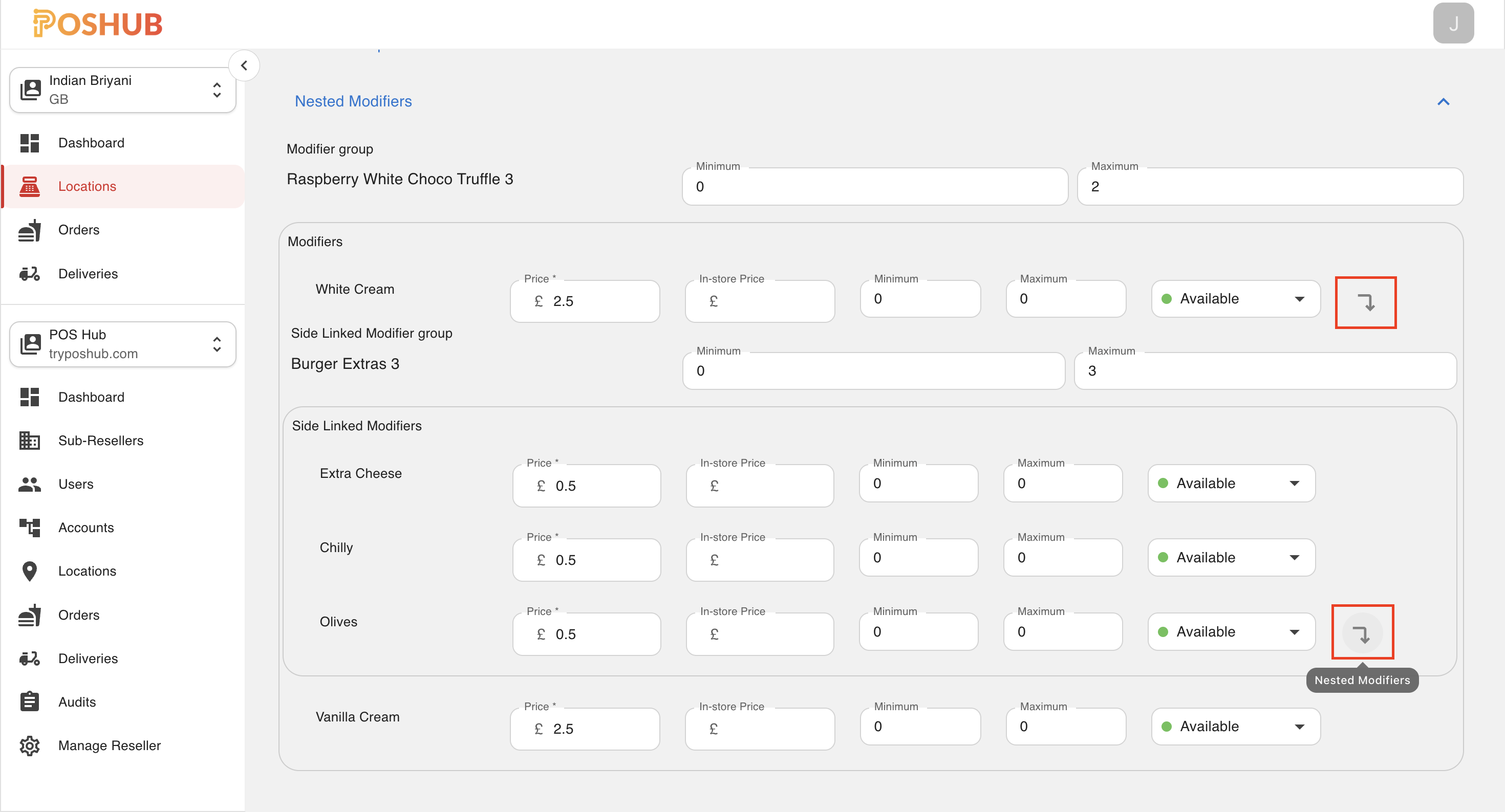
If any of the modifier have the nested inside it then that will indicate an icon with SubdirectoryArrow Icon. When you click on that icon it will show the side links underneeth.
You can edit the respective fields which are available if needed.
5. Actions
Update Button → Save all changes made to the modifier.
Cancel Button → Discard changes and return to the modifier list.
🔹 Relationship with Items & Modifier Groups
A modifier belongs to a modifier group (e.g., Toppings).
An item (e.g., Pizza) links to one or more modifier groups.
Nested modifiers allow complex linking (e.g., “Extra Cheese” inside “Burger Extras”).
✅ The Modifier Edit Page ensures businesses can fully control pricing, availability, and nested configurations for all add-ons.