
Appearance
Publish Menu
After creating a menu, the next step is to publish it to your connected marketplaces.
You will have Publish button in two places in the poshub.
- In the menu list page.
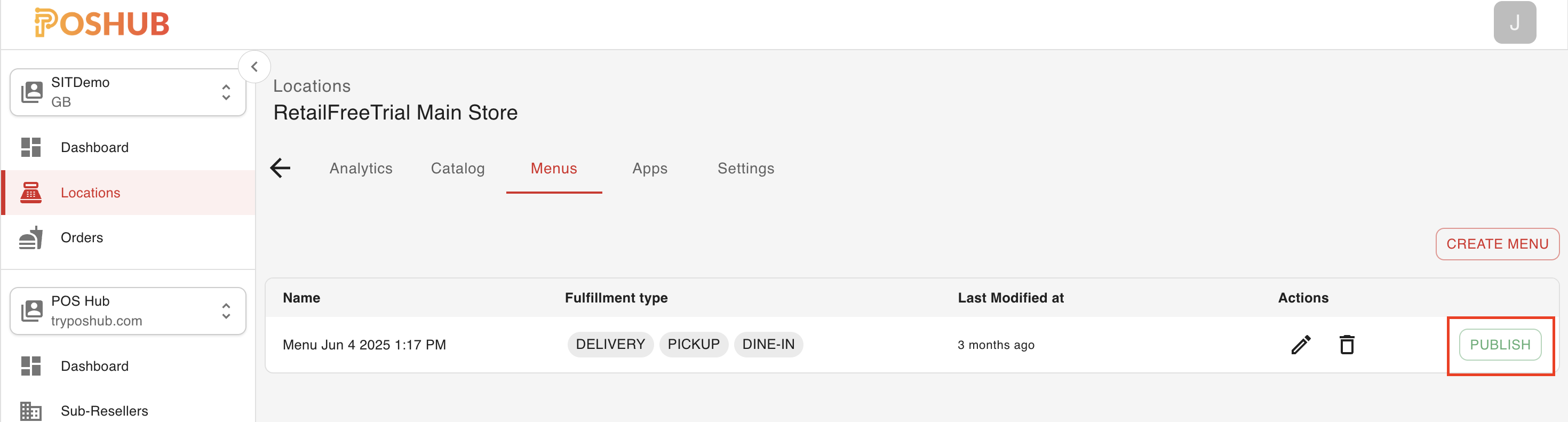
- In the menu view page.

Once you click the Publish button. A Publish Menu popup will appear:
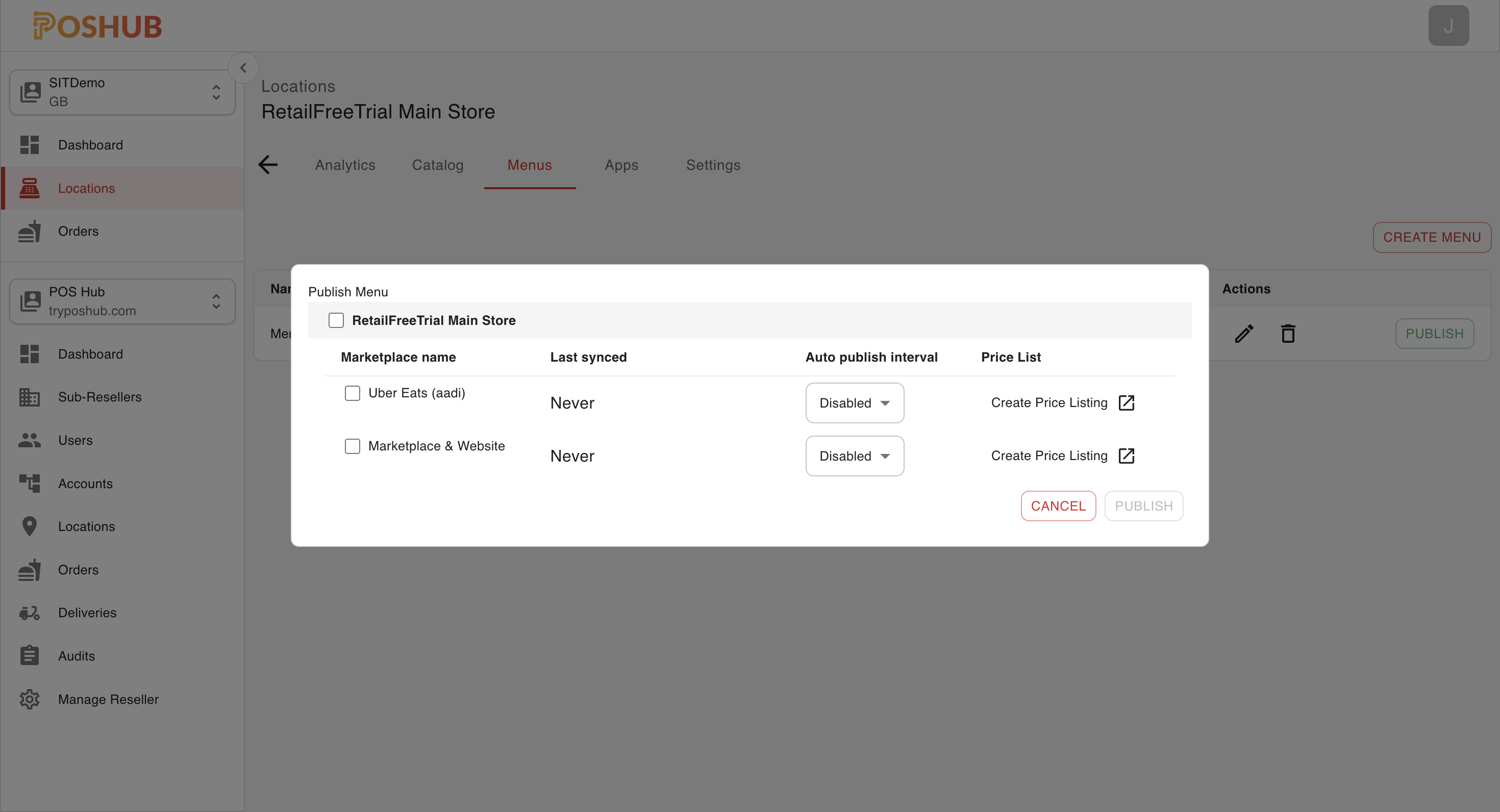
Fields in the Publish Menu popup
Marketplace Name
Lists all available marketplaces (e.g., Uber Eats, Marketplace & Website).
You can check one or multiple marketplaces to publish the menu.Last Synced
Shows the last time this menu was successfully synced with that marketplace.
Example: Never if it has not been published before.Auto Publish Interval
Dropdown to control whether menus are automatically re-published.
Options include Disabled (manual only) or timed intervals.
Actions
- Cancel – Closes the popup without publishing.
- Publish – Publishes the selected menu to the chosen marketplace(s).
Once published, your menu will be synced and available in the respective marketplace.
You can return to this screen at any time to re-publish, update, or change the auto-publish settings.