
Appearance
View / Modify Item
The Item Edit Page in POSHUB allows you to update the details of an existing item, including its core information, pricing, availability, and linked modifier groups.
🔹 Navigation to Item Edit Page
Go to Locations → Menus → Select Menu.
Locate the item you want to edit.
Click the Edit icon (✏️) beside the item.
You will be redirected to the Item Edit Page. 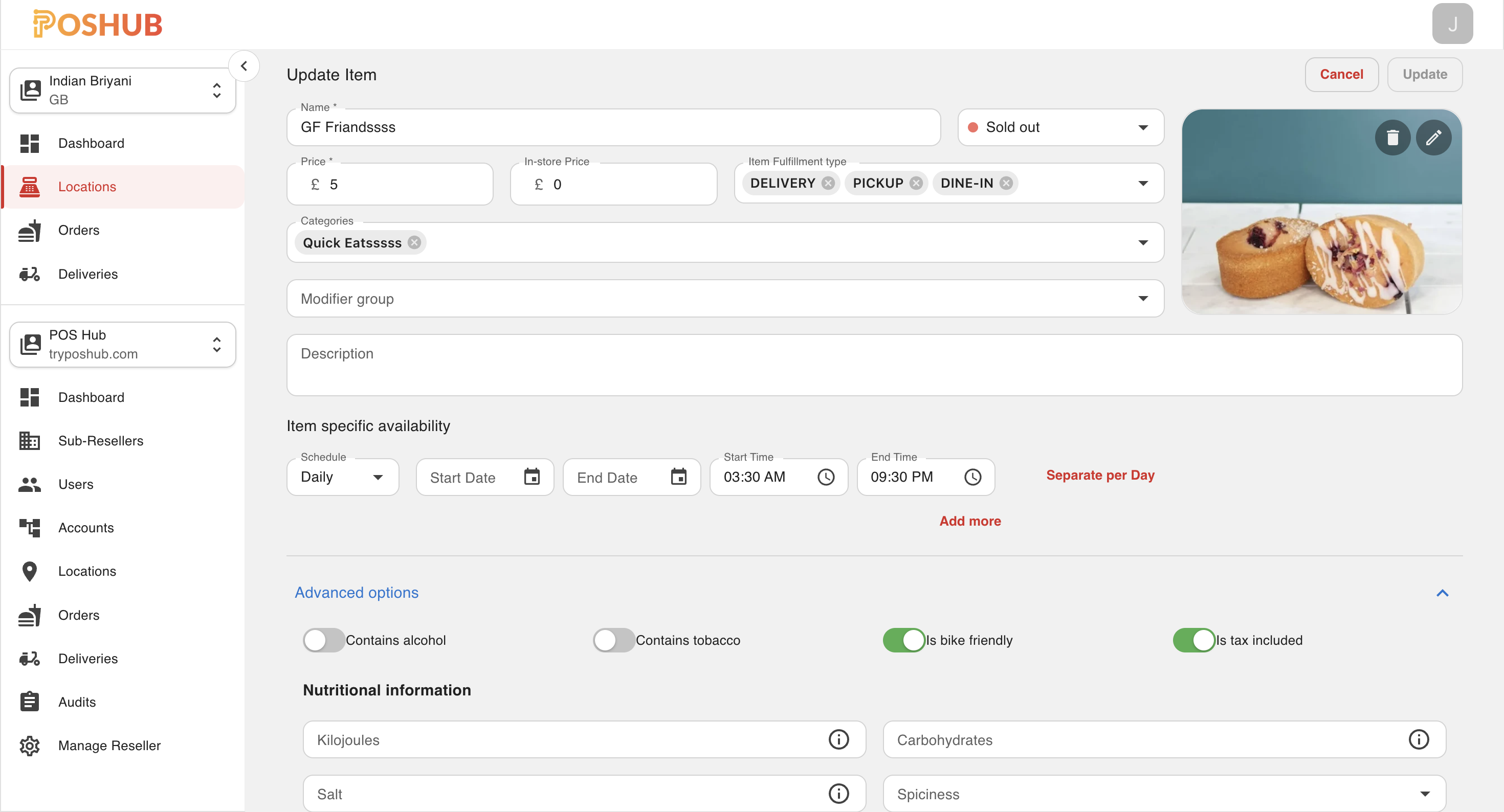
🔹 Editable Sections
1. Basic Information
Name → Update the item’s display name.
Description → Enter or modify item details.
Status → Toggle availability: 🟢 Available 🔴 Sold out
Category → Select which category the item belongs to. Note: To add or remove the category from this item you can select or unselect it from the drop down list.
Fulfilement → Select which fulfilment type the item will be available. (e.g., delivery, pick-up, dine-in)
2. Pricing
Price → Define or update the default price of the item. In Store Price - to offer a different price for “In Store” orders.
3. Availability
Service Hours → Restrict when the item can be ordered (e.g., Breakfast Only). Service period → You can schedule the item for perticular dates or days.
4. Modifier Groups
This section shows all modifier groups mapped to the item.
Note: To add or remove the modifier group from this item you can select or unselect it from the drop down list.
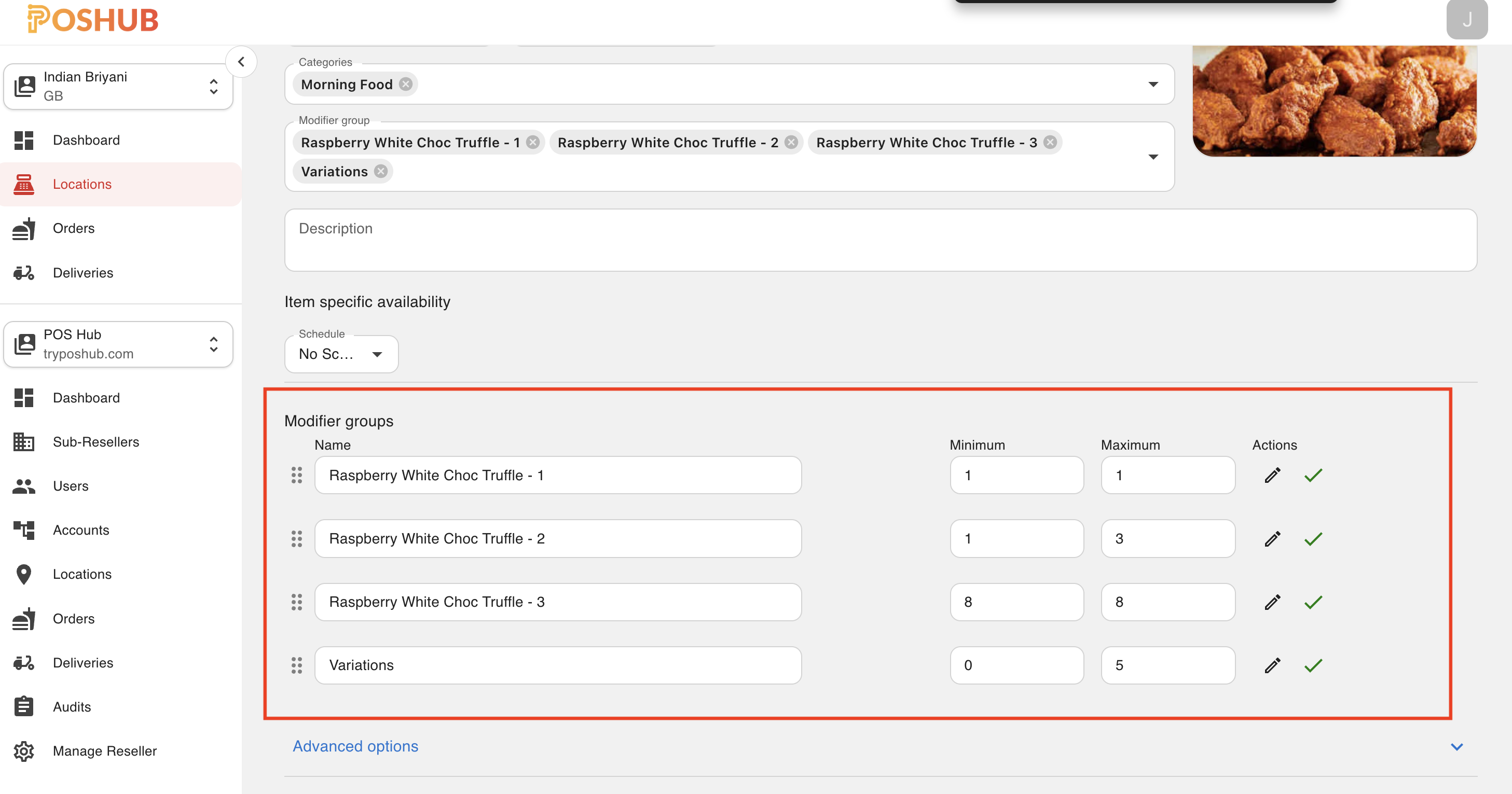
The selected modfier groups will list down in the bottom. If you want you can change the name, min and max permitted from this page. If you want to edit or view the modifier group in detailed click on the Edit Icon (✏️) beside it. It will redirect to the modifier group edit page.
5. Images
Upload, update, or remove item images.
Recommended formats: JPEG / PNG.
6. Advanced Settings
Collapsible section with toggles:
- Contains alcohol → Toggle (Off)
- Contains tobacco → Toggle (Off)
- Is bike friendly → Toggle (On)
- Is tax included → Toggle (On)
7. Nutritional Information
Fields for nutritional values (with info icons for help):
- Kilojoules
- Salt
- Carbohydrates
- Spiciness, etc..
🔹 Actions
At the bottom of the page:
Update Button → Save all changes made to the item.
Cancel Button → Discard changes and return to the item list.
🔹 Link to Modifier Group Edit Page
When you click the Edit icon (✏️) beside a modifier group, you are redirected to the Modifier Group Edit Page.
After editing, you can return to this page to see the updated modifier groups listed.
✅ Together, the Item Edit Page and the Modifier Group Edit Page provide a complete flow for managing items and their customization options.