
Appearance
View / Modify Category
This document describes the Category Edit Page UI in the POSHUB application.
The Category Edit Page allows administrators to update category details, manage availability, and control category status.
🔹 Navigation to Category Edit Page
Go to Locations → Menus → Select Menu.
Locate the Category you want to edit.
Click the Edit icon (✏️) beside the Category.
Then the update category will pop-up.
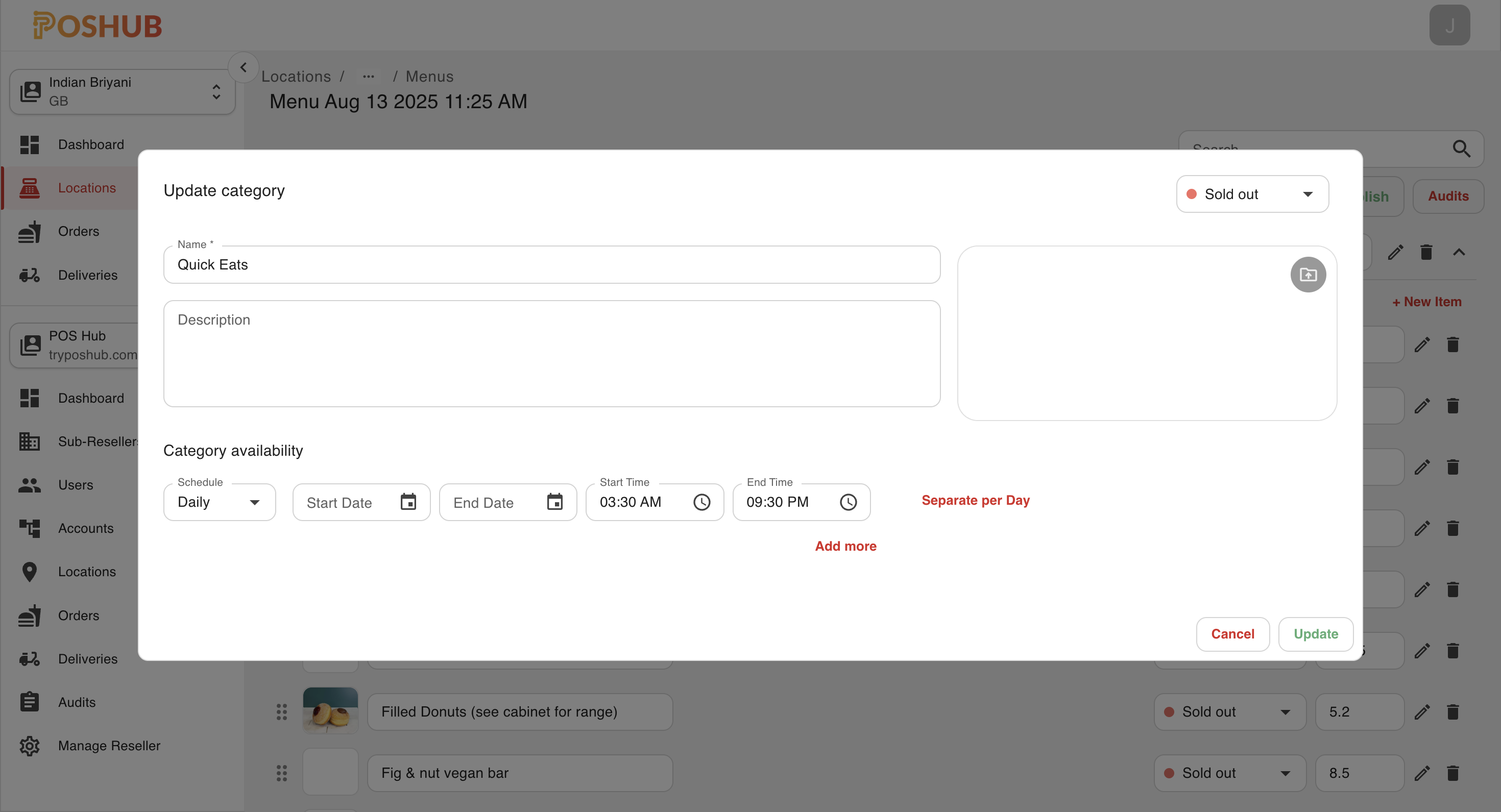
Fields
Category Information
- Status → Toggle availability: 🟢 Available 🔴 Sold out
- Name (required): Input field for category name (e.g., Quick Eats).
- Description: Optional text area for describing the category.
- Image Upload: Allows uploading a category image.
Category Availability
- Schedule: Dropdown with options like Daily, Weekly, etc.
- Start Date / End Date: Select availability range.
- Start Time / End Time: Time pickers to set availability within a day.
- Add More: Option to define multiple availability slots.
- Separate per Day: Allows specifying availability per day.
Actions
- Cancel: Discards changes and closes the modal.
- Update: Saves the updated category details.