Appearance
Connect POS
To connect a point of sale (POS) system to the POS Hub platform, first navigate to the location where you want to connect the POS. If you have not created a location yet, see Create Location.
- In the POS Hub platform, navigate to the Locations page.
- Click on the location where you want to connect to a POS application.
- Click on the Apps tab and then select Point of Sale.
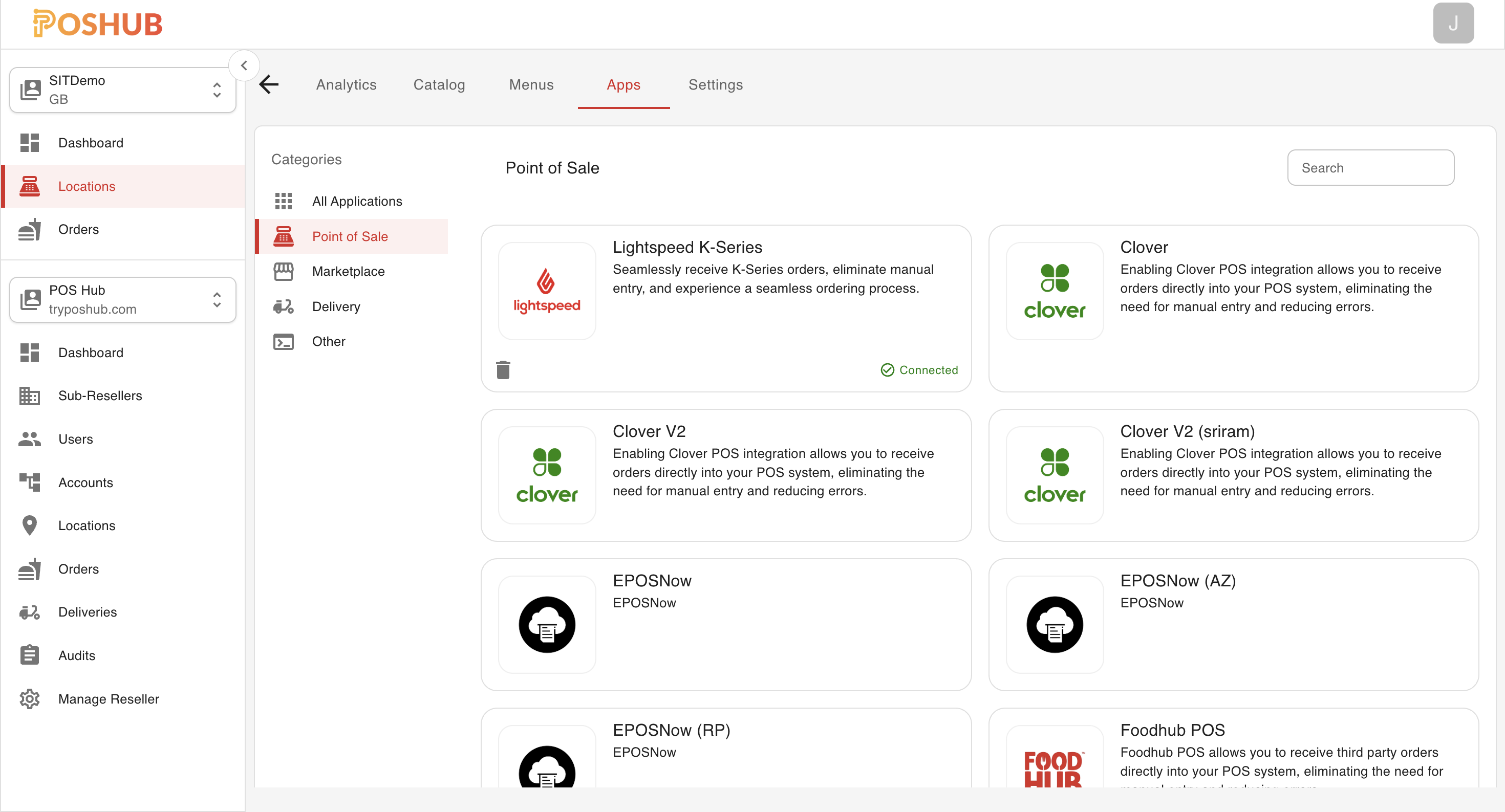
Here you will see a list of POS applications that are available to connect to your location, click the application you want to connect and a new window will appear that will begin the onboarding process for that particular POS application.
INFO
Each POS Platform will have a different onboarding process, follow the instructions provided by the POS application to complete the onboarding process.
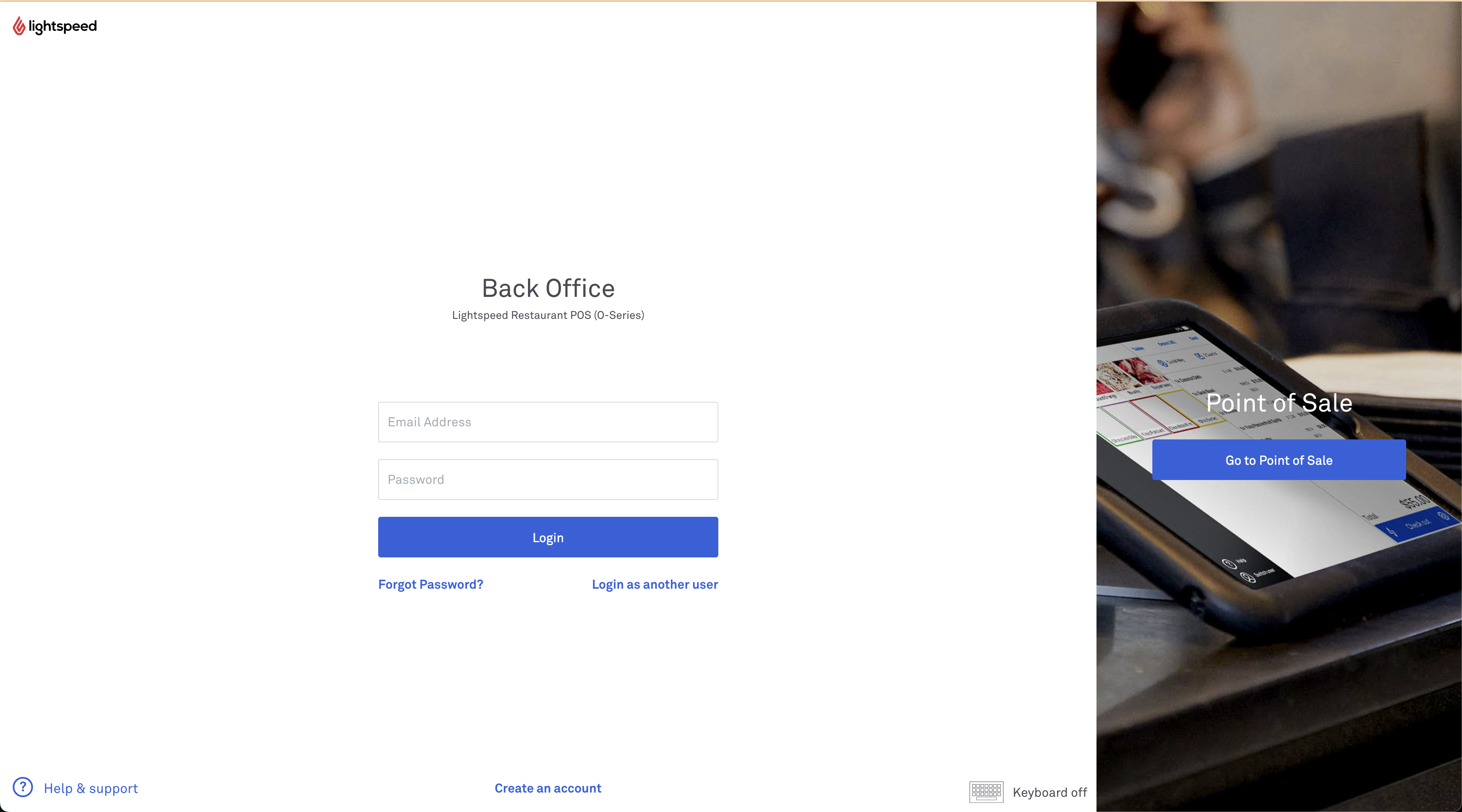
In this example, We will connect to the Lightspeed (O-Series) POS application, clicking on the application card opens a new window, and I am redirect to Lightspeeds login page.
After logging in, I am presented with a location selection screen, I select the Lightspeed Location that I want to pair / connect with the POS Hub location I was onboarding within POS Hub.
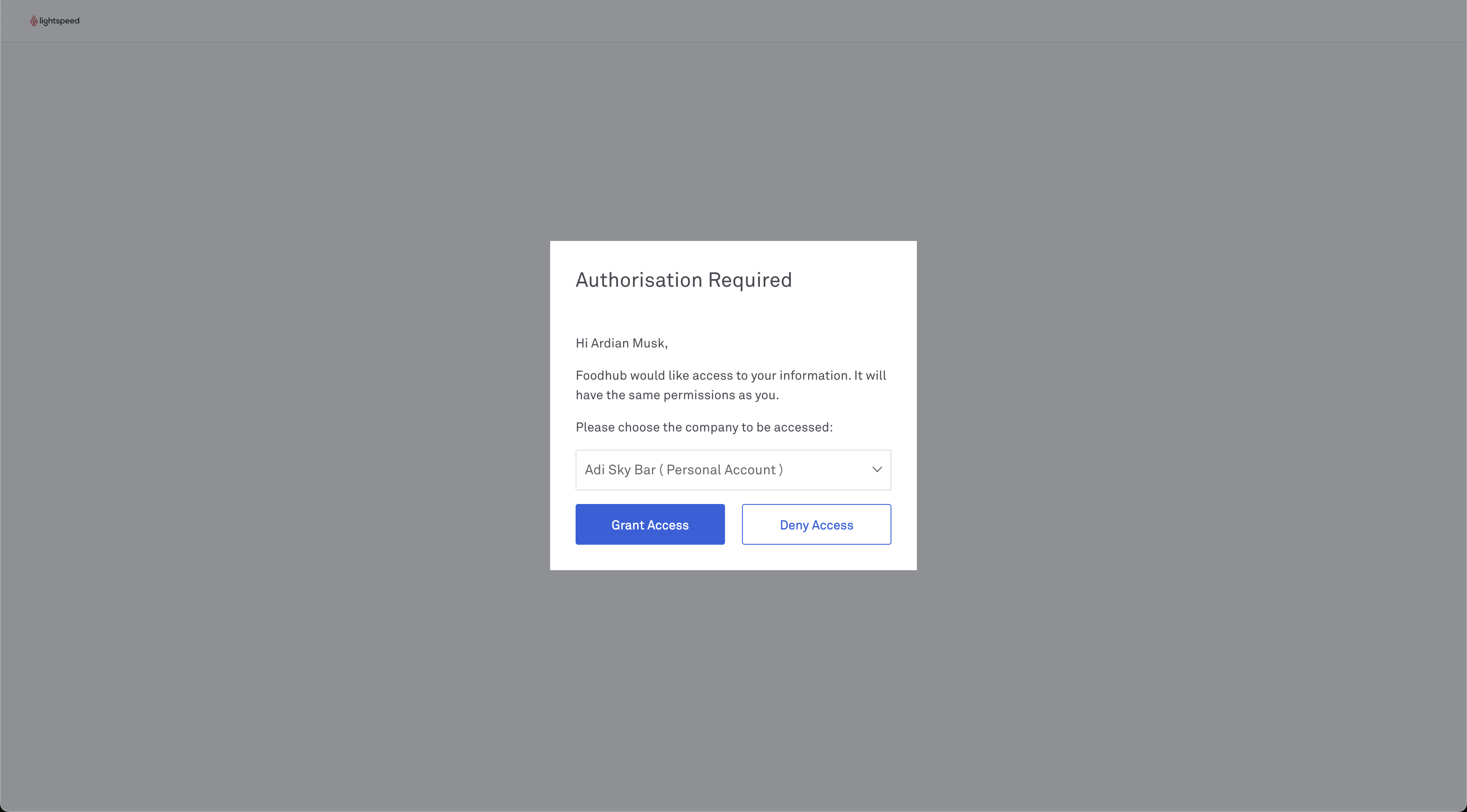
Once access is granted, you will be redirect from Lightspeed Authorization page back to the Lightspeed application where the onboarding process will continue, follow the instructions provided by the POS application to complete the onboarding process.
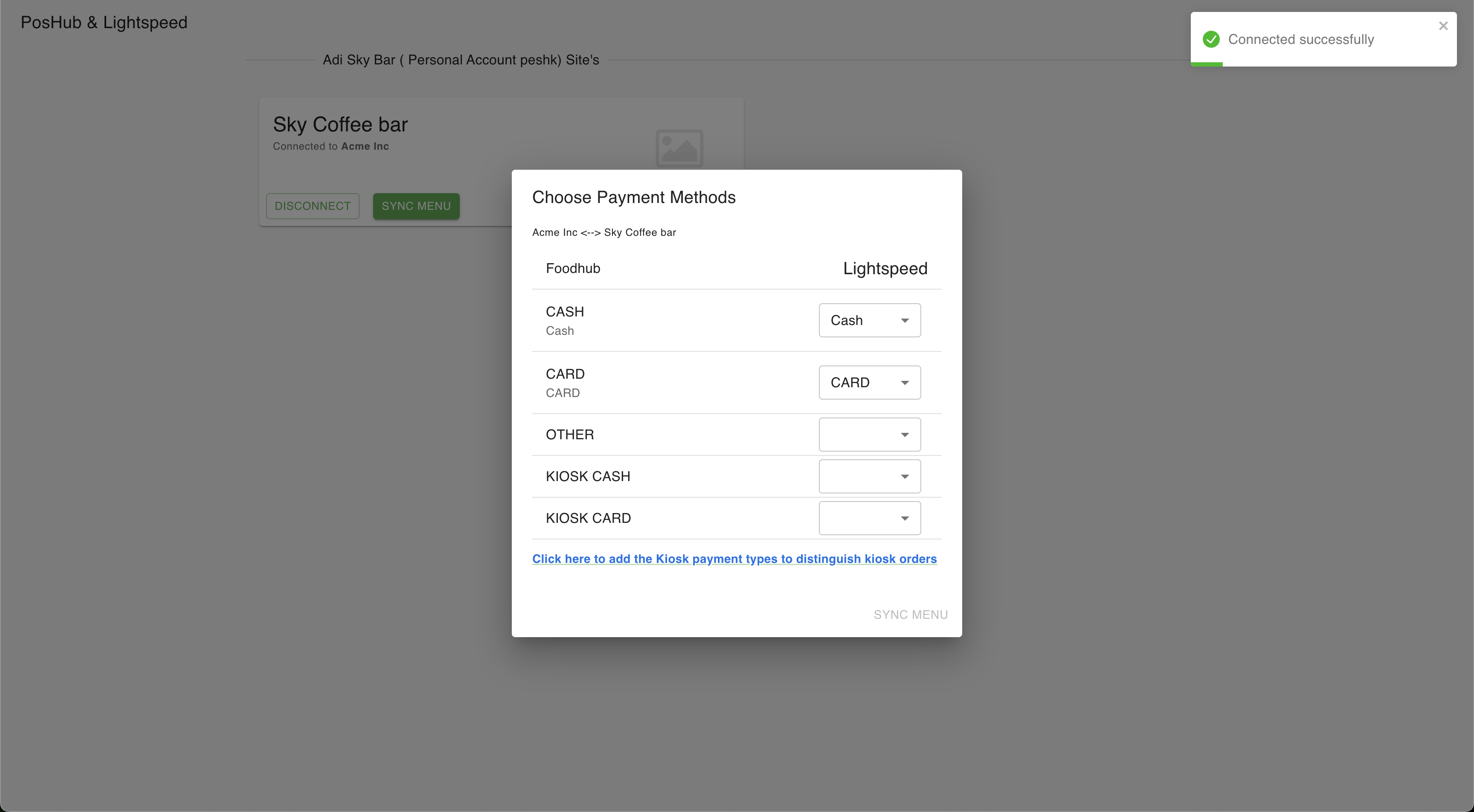
In the case of Lightspeed, the onboarding process requires a few steps to be completed, specifically the mapping of different payment types and the initial sync of products and inventory to the POS Hub platform.