
Appearance
View / Modify Modifier Group
The Modifier Group Edit Page in POSHUB allows you to update and manage modifiers linked to specific items. This ensures items can have additional customization options (like sizes, toppings, add-ons, etc.), which can be edited directly from the item’s edit page.
🔹 Navigation to Modifier Group Edit Page**
Go to Locations → Menus → Select Menu.
Open an item by clicking Edit.
If the item has modifier groups mapped, they will be listed in the Modifier groups section on the Item Edit Page.
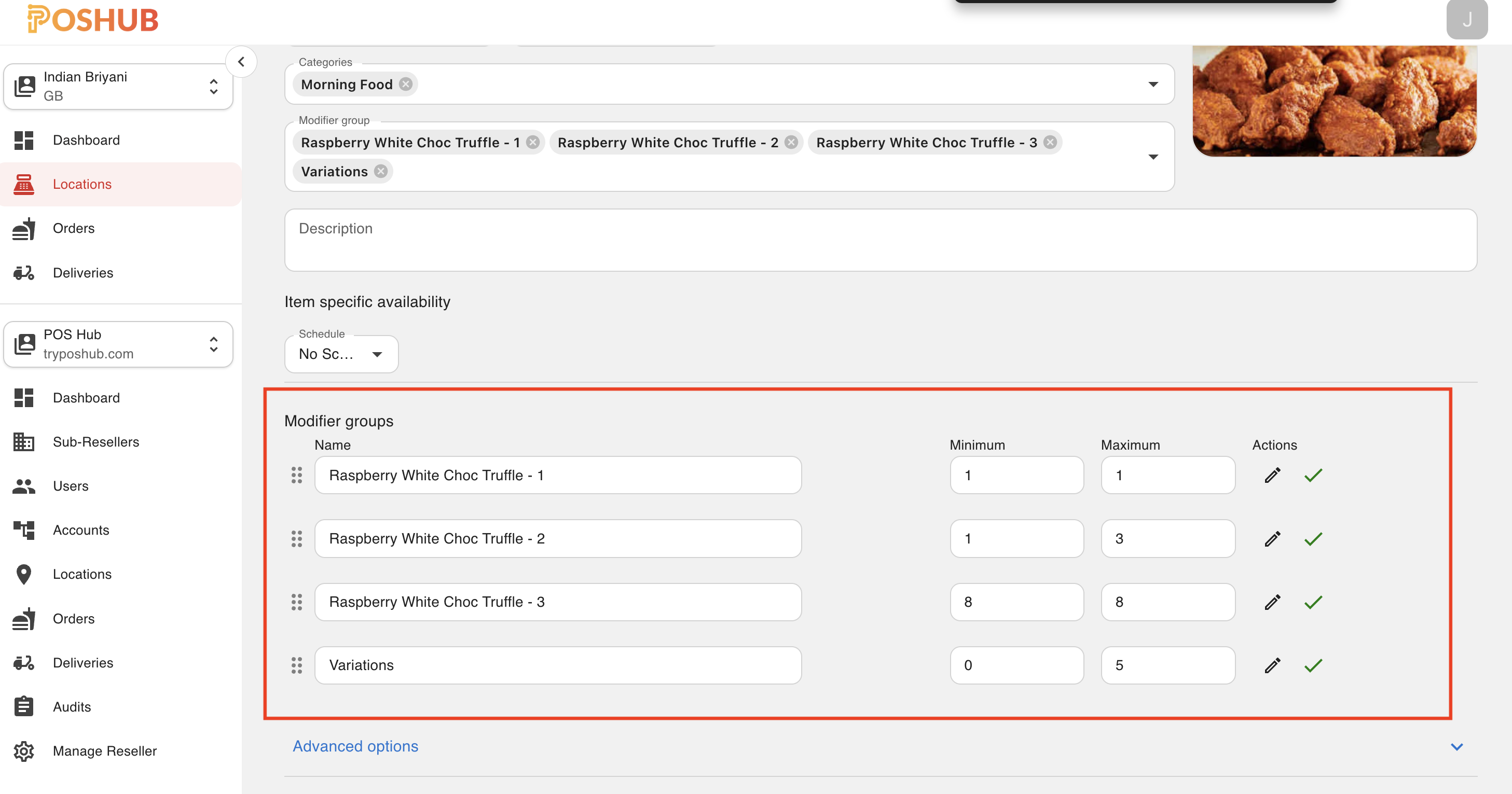
Beside each modifier group, there is an Edit icon (✏️). Clicking this will redirect you to the Modifier Group Edit Page.
After editing, clicking the Save / Cancel button will return you to the Item Edit Page.
🔹 Editing Modifier Groups
When you open a Modifier Group, you will see the Update Modifier Group Page.
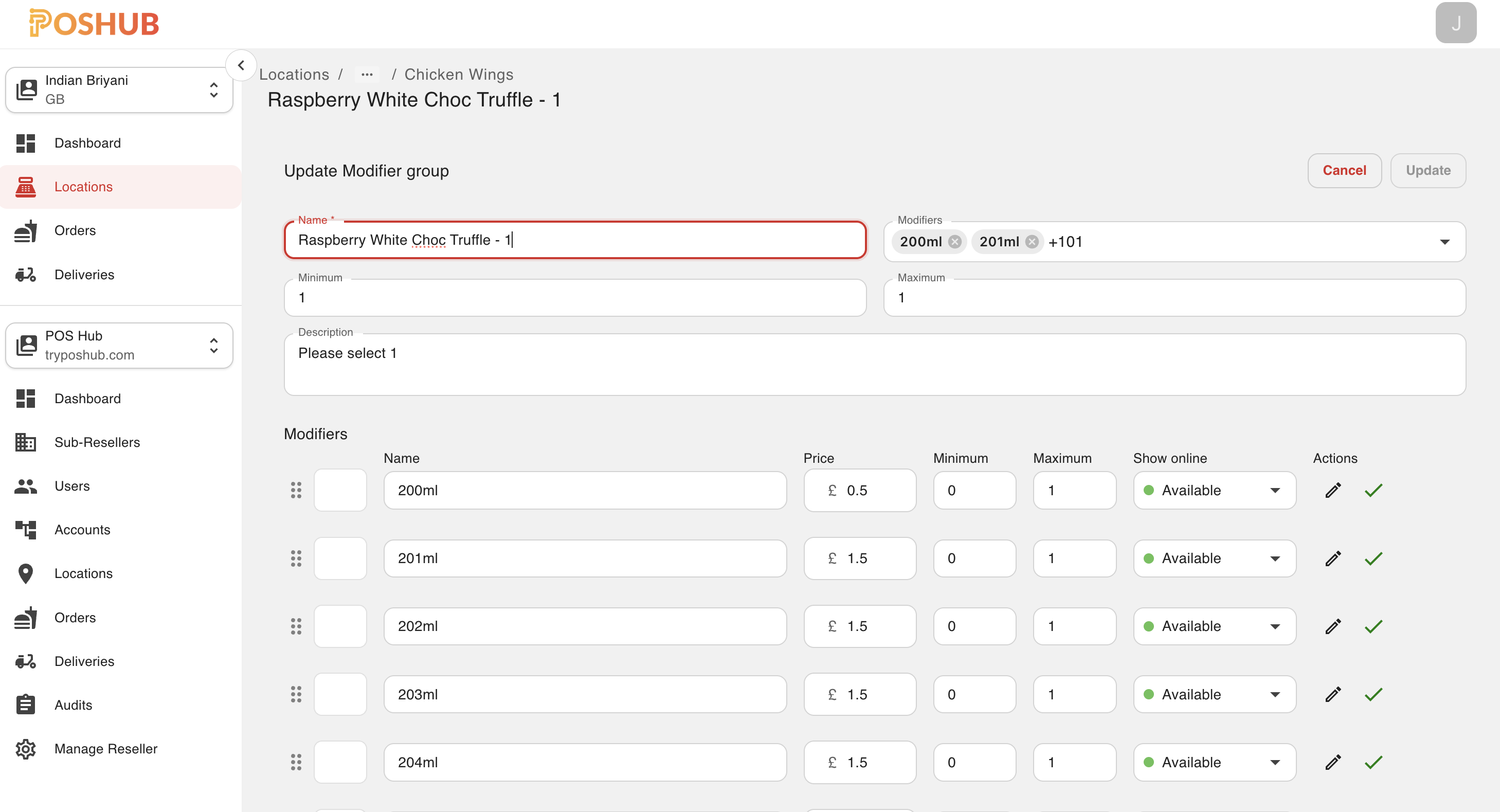
1. Basic Details
Name → Enter or update the modifier group name.
Minimum / Maximum → Define how many modifiers must be selected by the customer:
- Minimum: The minimum number of modifiers required.
- Maximum: The maximum number of modifiers allowed.
Description → Add optional instructions (e.g., Please select 1).
2. Modifiers List
This section shows all modifiers mapped to the item.
Note: To add or remove the modifiers from this item you can select or unselect it from the drop down list.
The selected modfiers will list down in the bottom. If you want you can change the name, price, showonline, min and max permitted from this page. If you want to edit or view the modifier in detailed click on the Edit Icon (✏️) beside it. If there is Nested modifiers it will show an Info Icon beside the edit icon to indicate that is nested modifier. It will redirect to the modifier edit page.
3. Available Actions
Update Button → Save all changes to the Modifier Group.
Cancel Button → Discard changes and go back to the Item Edit Page.
🔹 Returning to Item Edit Page
Once edits are completed:
Click Update to save changes. It will navigate back to the item edit page when you click on the save or cancel buttons.
✅ This ensures seamless navigation between Items and Modifier Groups, allowing flexible menu customization.