
Appearance
Manage Payments
Payments is the operational ledger for hosted payments created through POS Hub. Reseller users can work across every account and location in their reseller group; account users see payments for locations in the selected account.
POS Hub stores the payment lifecycle and audit history. Card entry and other payment-method details remain on the payment provider's hosted page.
Before you begin
Your role needs the permission for each operation you perform:
| Permission | Allows |
|---|---|
payments.read | View payments, open payment details, and refresh provider state. |
payments.write | Create a hosted payment. |
payments.cancel | Cancel an eligible payment. |
payments.refund | Fully or partially refund an eligible payment. |
The selected location must also have a connected payment application and valid payment routing. If a location has several payment applications, its ranking and failover settings must be complete before POS Hub can initialize a payment.
Open Payments
- Switch to the reseller group or account you want to work in.
- Select Payments from the main navigation.
- Use Status, External order reference, or External payment reference to narrow the list, then select Apply.
- Select a row to open the payment.
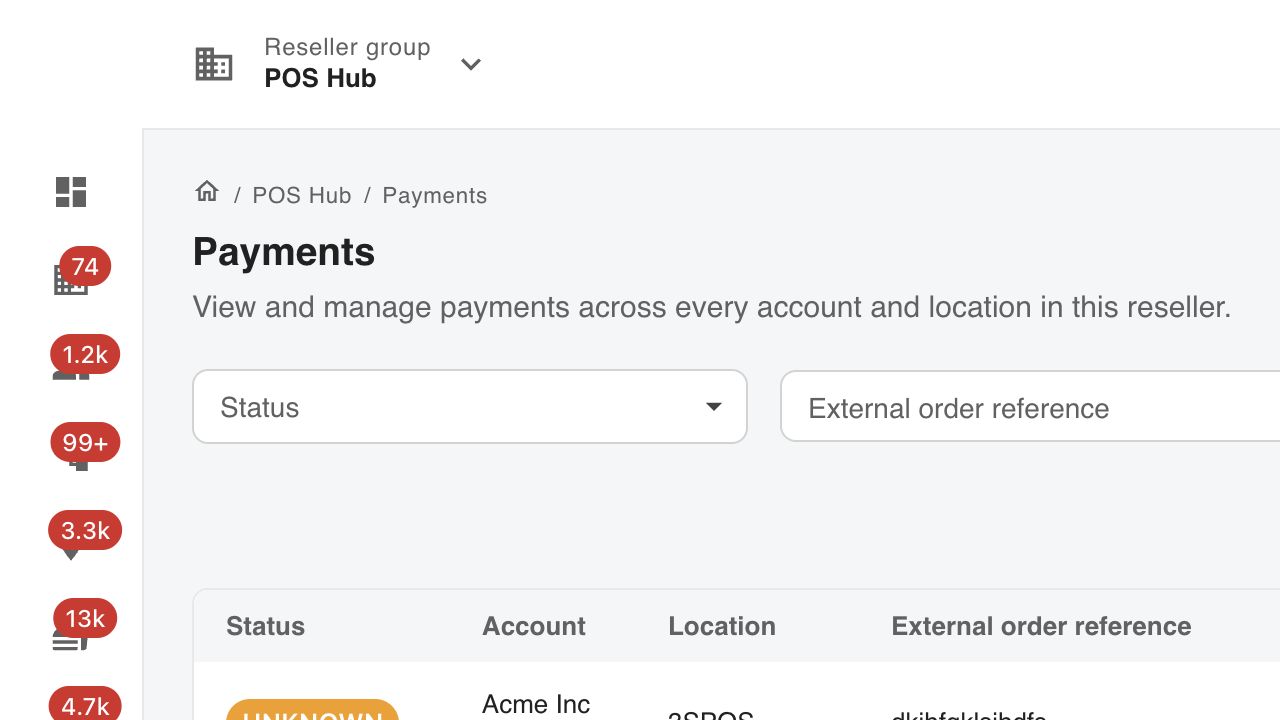
The list shows the normalized POS Hub status, account and location, external references, amount, and last update. Long references stay on one line; hover over a truncated value to see it in full.
Create a hosted payment
Select Create Payment. The form remains disabled until you choose a location because the location determines the currency and payment application.
- Location — search for and select the location taking the payment. Locations are identified by name and address.
- Customer details — enter the customer's first name, last name, valid email address, international phone number, and your customer reference.
- Payment and order details — enter the amount in the displayed currency and an external order reference. Add an external payment reference when your system already has one.
- Advanced details — optionally add an HTTPS return URL, a description of up to 500 characters, and application-defined metadata as a JSON object.
- Check the values, then select Create payment.
POS Hub creates the payment immediately and opens its detail page. Select Open hosted payment to continue to the provider's checkout. The provider URL is deliberately hidden from the page and opens in a new tab.
Financial operation
Selecting Create payment initializes a real provider payment. Verify the location, amount, customer, and references before submitting. Do not retry an UNKNOWN payment until it has been reconciled; otherwise the customer could be charged twice.
Understand payment statuses
| Status | Meaning |
|---|---|
INITIALIZING | POS Hub has stored the request and is selecting or calling a payment application. |
PENDING | The hosted payment is ready and waiting for the customer or provider. |
PROCESSING | The provider is processing the payment but has not reported a final result. |
SUCCEEDED | The provider confirmed collection. The payment can be refunded, subject to permissions and remaining amount. |
FAILED | The provider or payment application reported a final failure. |
UNKNOWN | POS Hub cannot prove the provider outcome. Reconciliation is required. |
CANCELLED | The payment is terminally cancelled in POS Hub. Provider-side cancellation depends on the payment application. |
PARTIALLY_REFUNDED | One or more confirmed refunds total less than the collected amount. |
REFUNDED | Confirmed refunds equal the collected amount. |
FAILED, CANCELLED, and REFUNDED are terminal. A provider may move an UNKNOWN payment back to an active state or to a final result after reconciliation.
Review and reconcile a payment
The payment detail page contains:
- the current status and freshness;
- the amount, account, location, customer and external references;
- provider and routing references;
- a chronological Status history;
- every provider Initialization attempt and whether failover was safe; and
- confirmed, pending, failed, or unknown Refunds.
Select Refresh state to ask the selected payment application for the latest provider state. A successful refresh is persisted and added to history when the normalized status changes. If reconciliation fails, POS Hub continues to display the last stored state and shows a recovery message.
For an unresolved payment, record the POS Hub payment ID, account, location, current and provider statuses, initialization attempts, and the failing time before escalating. Never include card details, hosted URLs, credentials, or access tokens.
Cancel a payment
Cancel payment is available for PENDING, PROCESSING, and UNKNOWN payments when you have payments.cancel.
- Open the payment and review its current state.
- Select Cancel payment.
- Optionally enter a reason, then confirm the cancellation.
POS Hub reconciles first so a payment that has already succeeded is not cancelled incorrectly. Cancellation never creates a refund.
Some payment applications cannot cancel the provider transaction. They may still confirm a POS Hub-only cancellation, which records CANCELLED in POS Hub with a provider status such as CANCELLATION_NOT_SUPPORTED. In that case, the provider's hosted link may remain usable. Follow the provider's operational process to prevent or investigate a later collection.
Refund a payment
Refund is available for SUCCEEDED and PARTIALLY_REFUNDED payments with a remaining refundable amount and the payments.refund permission.
- Open the payment and select Refund.
- Enter a positive whole amount in the currency's minor unit. For example, enter
1000to refund £10.00. - Optionally enter a reason, then confirm the refund.
POS Hub reconciles the payment before submitting the refund. Only provider-confirmed refunds increase Confirmed refunded amount. An UNKNOWN refund must be reconciled before another refund is attempted.
Troubleshooting
| Problem | Check |
|---|---|
| Payments or an action is missing | Confirm the relevant payments.read, payments.write, payments.cancel, or payments.refund permission on the current reseller or account. |
| A location cannot be selected | Confirm the location belongs to the current context and that you can read it. Search by its name or address. |
| POS Hub could not initialize the payment | Check that the location has a completed payment-app connection and valid ranking. Review the initialization attempts before retrying. |
Payment remains PENDING | Open it and select Refresh state when it is outside the five-minute reconciliation target. |
Payment is UNKNOWN | Refresh once. If it remains unknown or reconciliation fails, escalate with the payment ID and audit history; do not create a replacement blindly. |
| Cancel is unavailable | Only PENDING, PROCESSING, and UNKNOWN payments can be cancelled. A successful payment requires a refund instead. |
| Refund is unavailable | The payment must be SUCCEEDED or PARTIALLY_REFUNDED, have a remaining refundable amount, and your role must include payments.refund. |
For API integration and provider callback behaviour, continue with the Payment Integration Flow and Payment Application Developer Guide.