
Appearance
View / Modify Menu
After you have created a menu, you can view and make changes to it from the Menu tab for a location.
From the menu view, you can:
- Edit menu categories
- Edit menu items
- Edit modifier groups
- Edit individual modifiers
- Change the sequence of categories
- Change the sequence of items
- Import items from your synced catalog
- Publish the updated menu to the marketplace
Accessing Modify Menu
- Go to the Locations page in POS Hub.
- Click the location that has the menu you want to edit.
- Select the Menu tab.
- The menu view will load, showing all categories and the items within them.
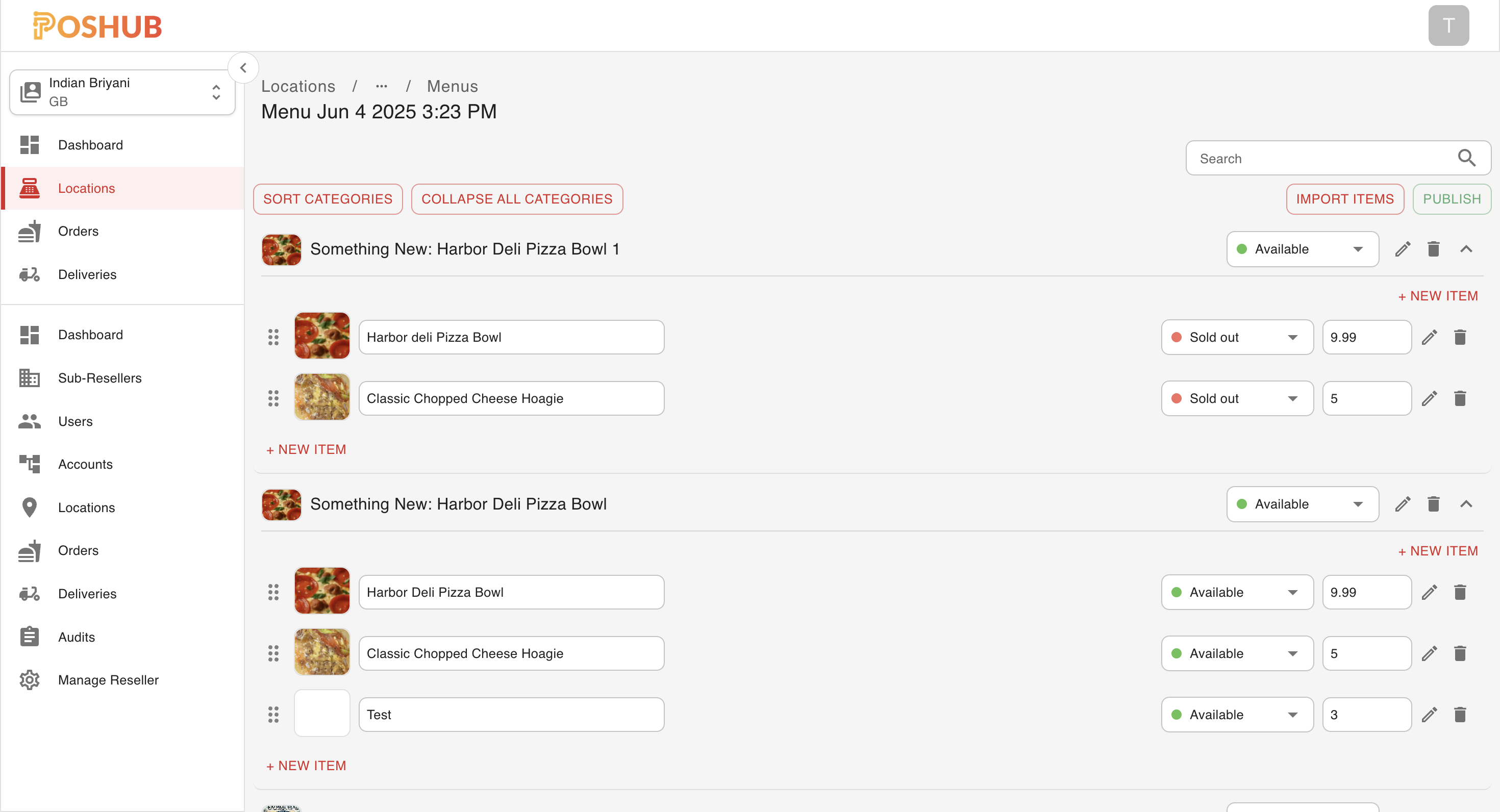
Top Menu Actions
At the top of the menu view, you’ll see the following actions:
Sort Categories
Allows you to reorder categories within the menu. Click and drag to change the sequence.Collapse/Expand All Categories
Quickly hide or show all items within categories for easier navigation.Import Items
Add new items from your synced catalog to the menu.Publish
Pushes your menu updates live to the marketplace.
Inline Editing for Category
In the menu view, each category has the toggle to change the availability status of that particular category between Available and Sold Out.
Tip: For more advanced changes, click the Edit icon next to the category. This opens the full category editor where you can modify additional fields such as description, images, and availability.
Inline Editing for Items
In the menu view, each item has the following editable fields directly from the list:
- Availability Status — Toggle between Available and Sold Out.
- Price — Edit the item price.
- Show Online — Choose whether the item is visible in the online menu.
Changes you make inline are saved automatically.
Tip: For more advanced changes, click the Edit icon next to the item. This opens the full item editor where you can modify additional fields such as description, images, and modifier assignments.