
Appearance
D
Deliveroo
ActiveLeading food delivery platform across Europe, Asia-Pacific, and the Middle East, providing seamless synchronization between your POS system and Deliveroo for real-time menu updates, order management, and comprehensive restaurant operations support.
10-15 minutes
16 Regions
Medium
Overview
Deliveroo is a leading food delivery platform across Europe, Asia-Pacific, and the Middle East. This integration provides seamless synchronization between your POS system and Deliveroo, enabling real-time menu updates, order management, and comprehensive restaurant operations support.
Supported Regions
🇦🇺Australia
🇧🇭Bahrain
🇧🇪Belgium
🇫🇷France
🇩🇪Germany
🇭🇰Hong Kong
🇮🇪Ireland
🇮🇹Italy
🇰🇼Kuwait
🇳🇱Netherlands
🇶🇦Qatar
🇸🇦Saudi Arabia
🇸🇬Singapore
🇪🇸Spain
🇦🇪United Arab Emirates
🇬🇧United Kingdom
Supported Features
Location Sync
AddressStore address and contact information are synchronized with the marketplace during publish and incremental sync
Business HoursBusiness hours are synchronized with the marketplace during publish and incremental sync
Tax RatesTax rates are synchronized with the marketplace during publish and incremental sync
Special HoursSpecial hours are synchronized with the marketplace during publish and incremental sync
Menu Sync
Full PublishPublishes complete menu structure to marketplace
Scheduled PublishSupports scheduled menu publishes
Incremental SyncSupports fully or partially real-time menu updates, typically limited to item availability changes
Store Status
Pause/ResumePause and resume store accepting orders status via POS Hub
Orders
Order SyncReceives and synchronizes orders from marketplace
Status UpdatesSupports orders status updates from POS Hub to marketplace
Driver UpdatesProvides driver updates from marketplace to POS Hub
Self DeliveryMarketplace supports "self delivery" (allowing for delivery integration)
Legend:✅ Supported|⚠️ Partial|❌ Not Supported|🔄 Coming Soon
Onboarding
Prerequisites
Before you begin, ensure you have:
Active Deliveroo merchant account
Access to Deliveroo Restaurant Hub
Active POS Hub Location
Setup Guide
1
Get Your POS Hub Location ID
1 minNavigate to the Deliveroo integration page in POS Hub
- Navigate to the Deliveroo integration page in POS Hub
- Copy your POS Hub Location ID from the integration page
- This unique identifier will be used to connect your POS system to Deliveroo
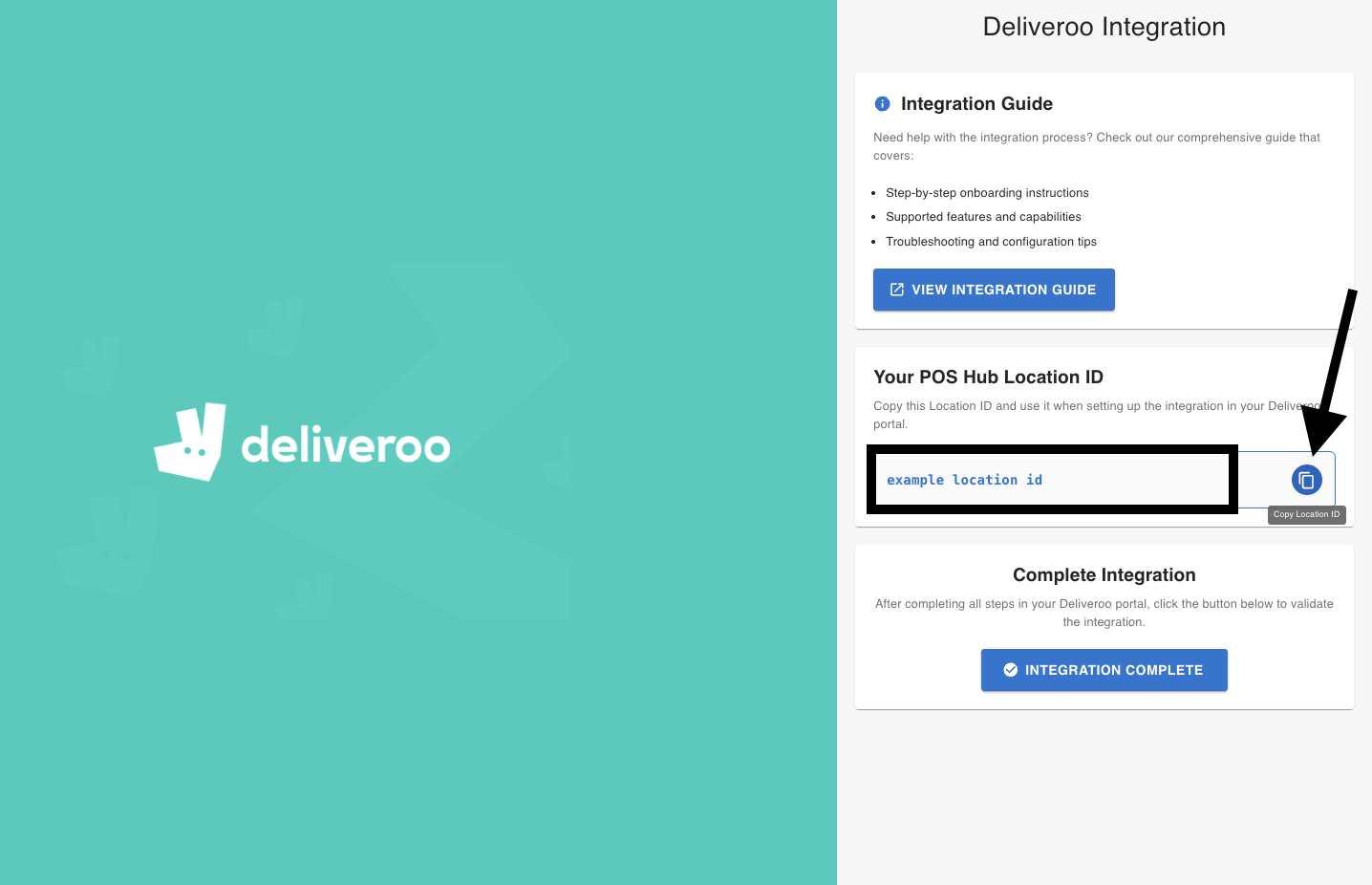
Keep this Location ID handy as you'll need it in Step 6
2
Access Deliveroo Restaurant Hub
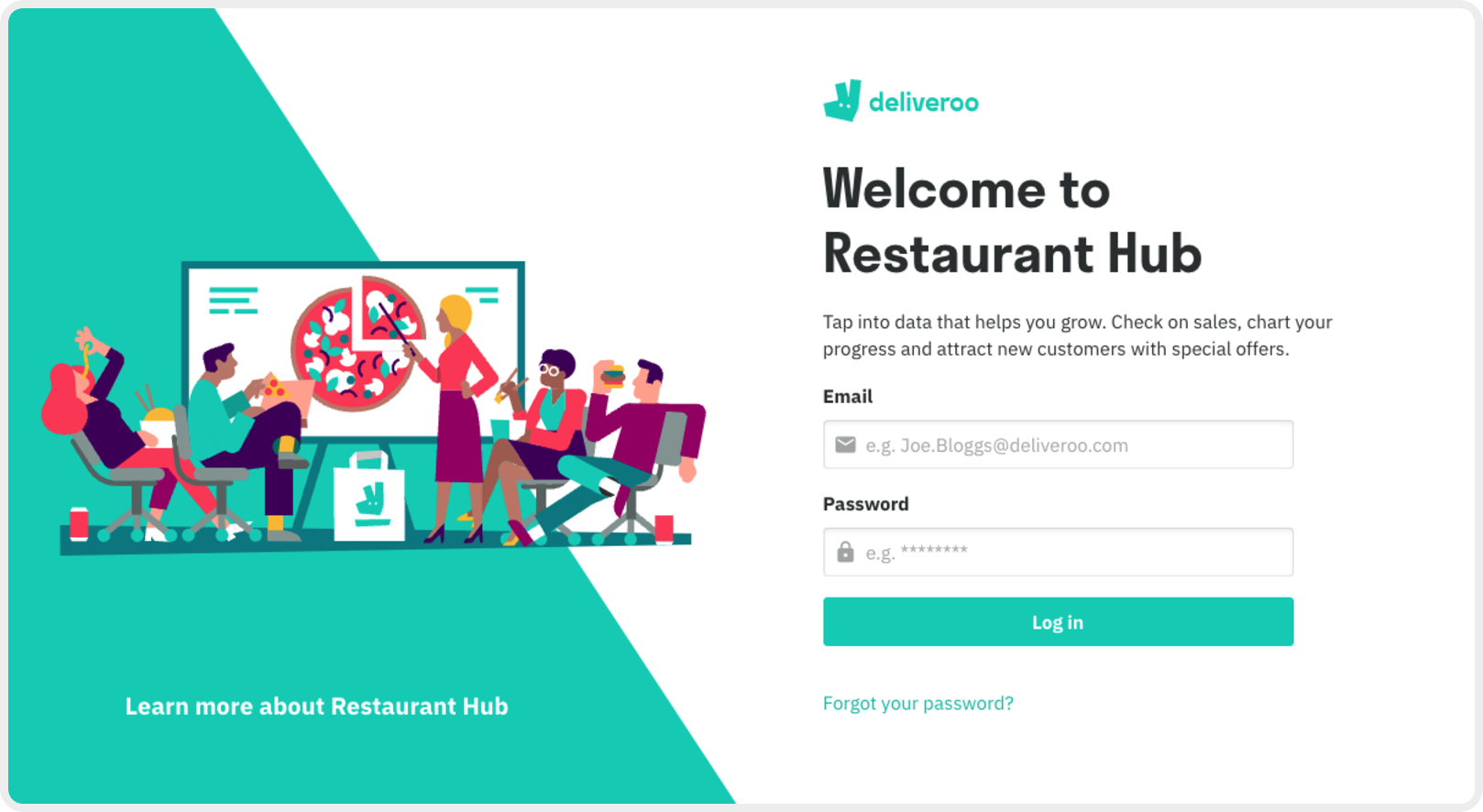
1 minLog in to Deliveroo Restaurant Hub
- Go to Deliveroo Restaurant Hub (restaurant-hub.deliveroo.net)
- Log in with your Deliveroo merchant credentials
- Ensure you have the necessary permissions to manage integrations
3
Navigate to POS Integration Settings
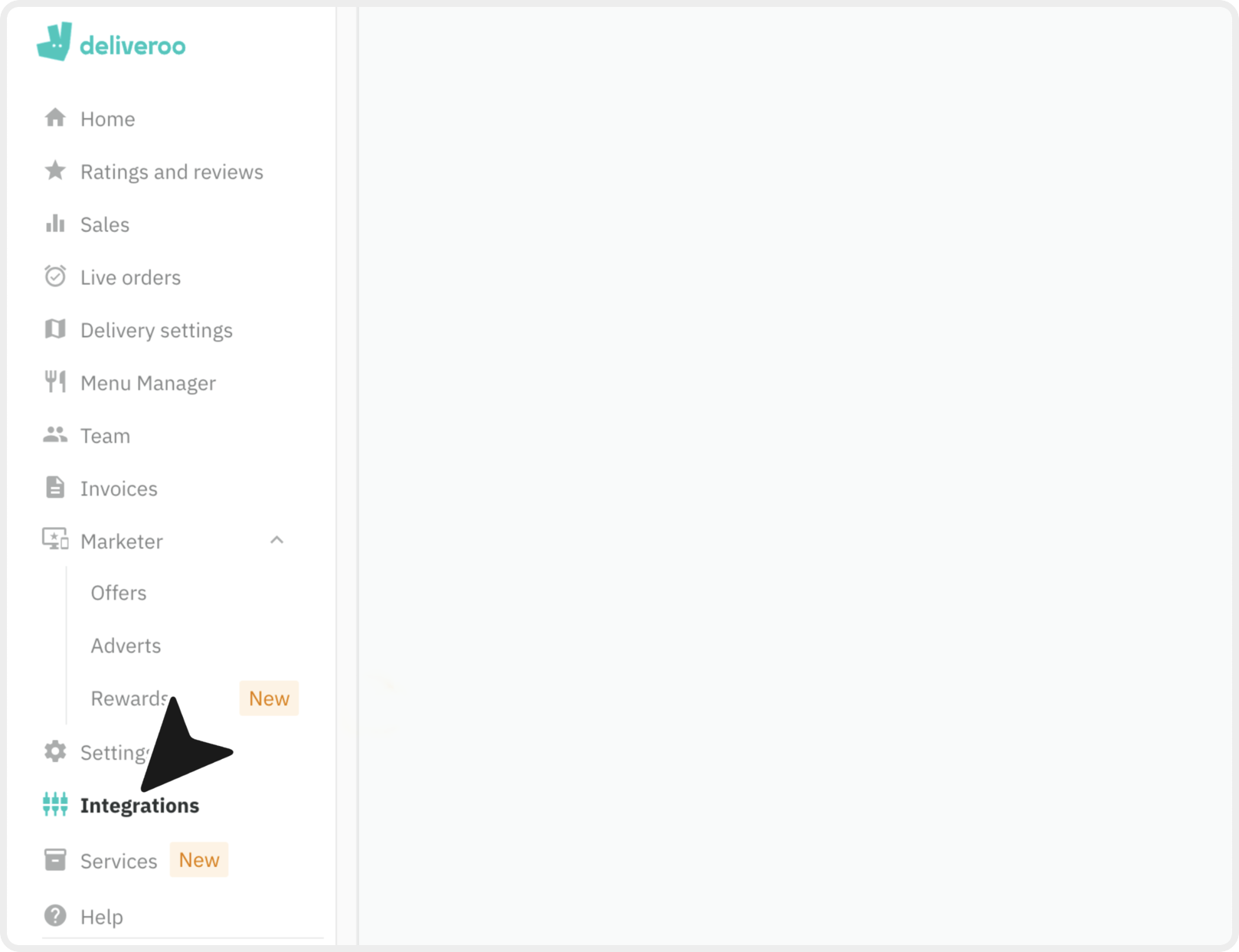
1 minAccess the POS integration section
- In the Deliveroo Restaurant Hub, select Integrations from the sidebar
- Click on Till (POS) from the settings menu
- This section manages your point-of-sale system integrations
4
Connect Your Sites
1 minStart the integration process
- Click "Connect Sites" to start the integration process
- This will open the integration marketplace where you can find POS systems
- You'll see a list of available POS integrations
5
Find POS Hub Integration
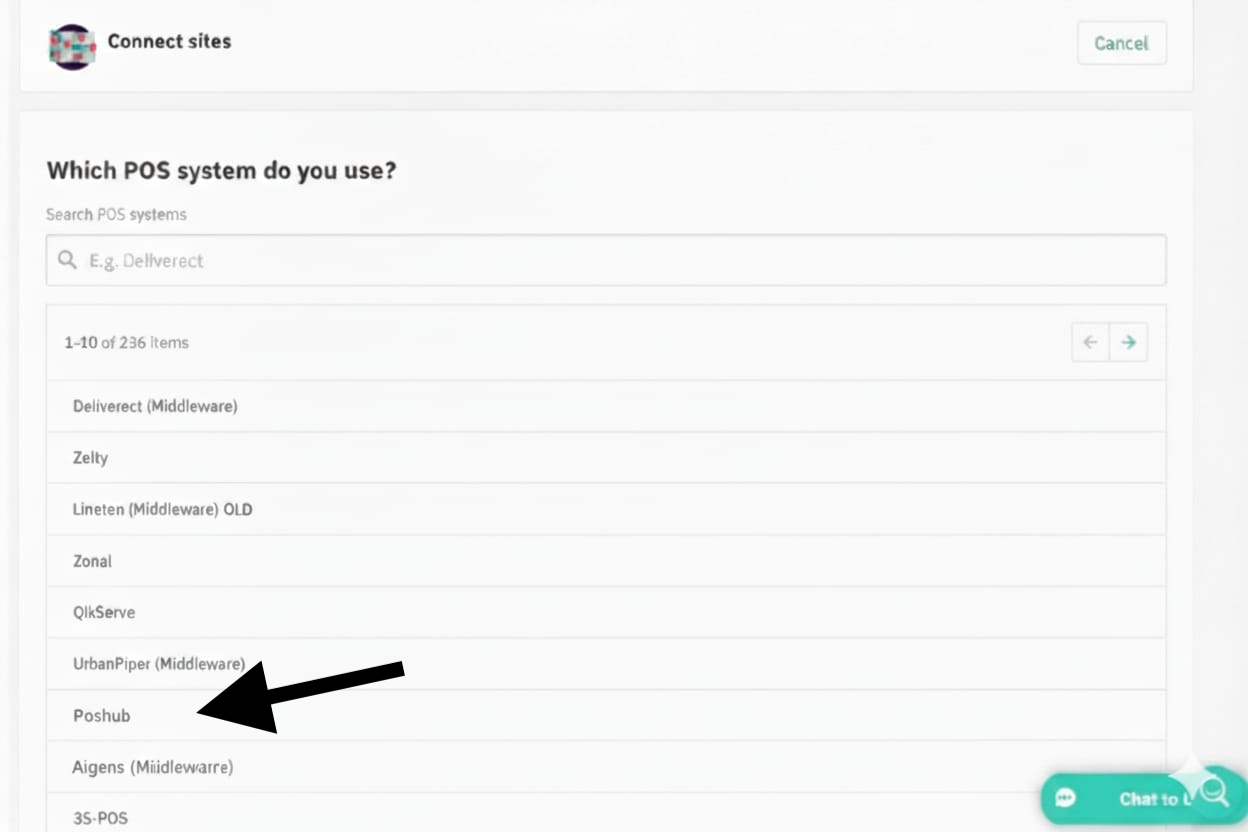
1 minSelect POS Hub from the integration marketplace
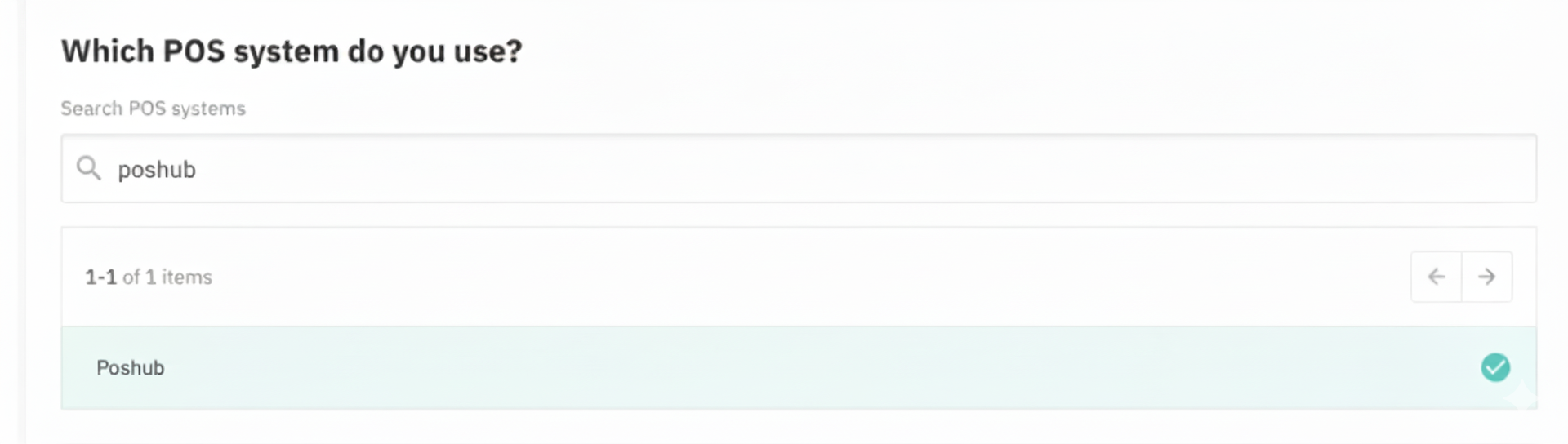
- In the "Which POS system do you use?" section, search for "POS Hub"
- Select "POS Hub (Middleware)" from the available options
- Ensure you select the correct integration that matches your setup
6
Enter Your Location ID
2-3 minConnect your site with the POS Hub Location ID
- Find and check the site(s) you want to connect
- In the "Site location ID" field for each site, enter your POS Hub Location ID
- Double-check that the ID is entered correctly (it should be a long alphanumeric string)
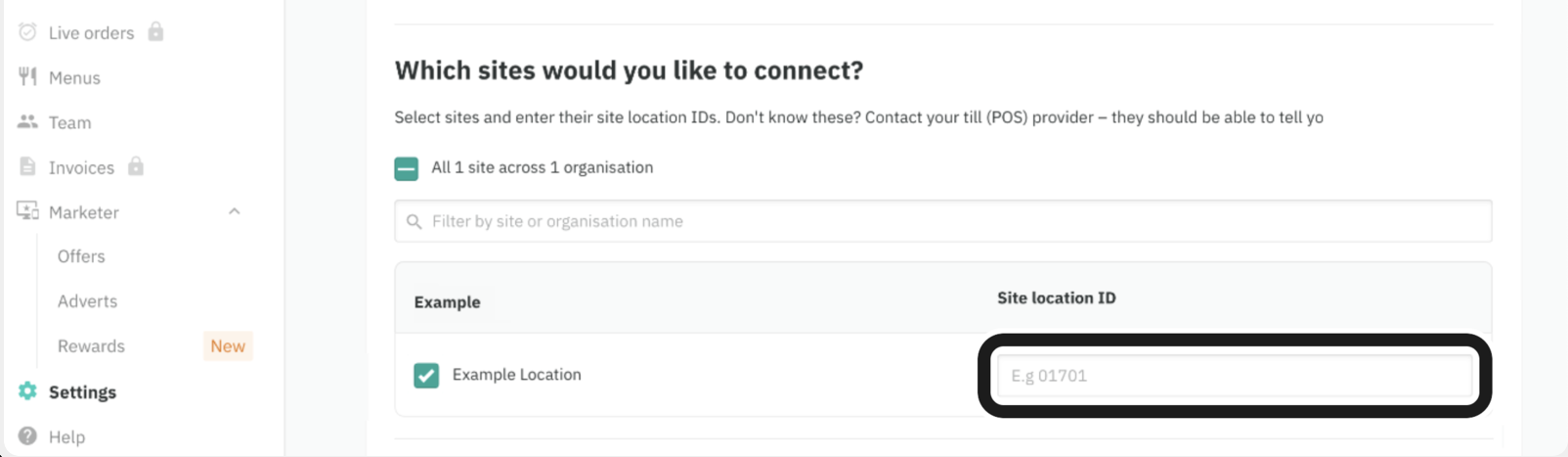
Make sure to enter the exact Location ID copied from POS Hub. Any typos will prevent successful integration
7
Configure Menu Updates
1 minEnable menu synchronization
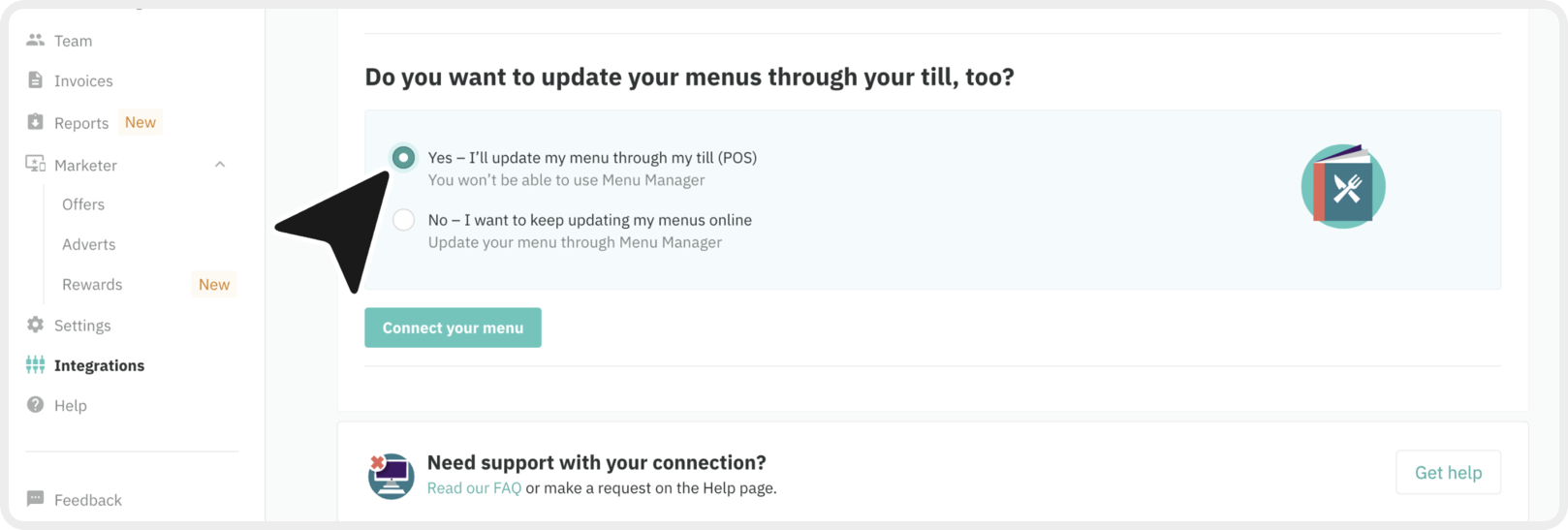
- In the "Do you want to update your menus through your till, too?" section
- Tick the "Yes – I'll update my menu through my till (POS)" option
- This enables automatic menu synchronization between your POS and Deliveroo
8
Connect Your Menu
1 minEstablish the menu connection
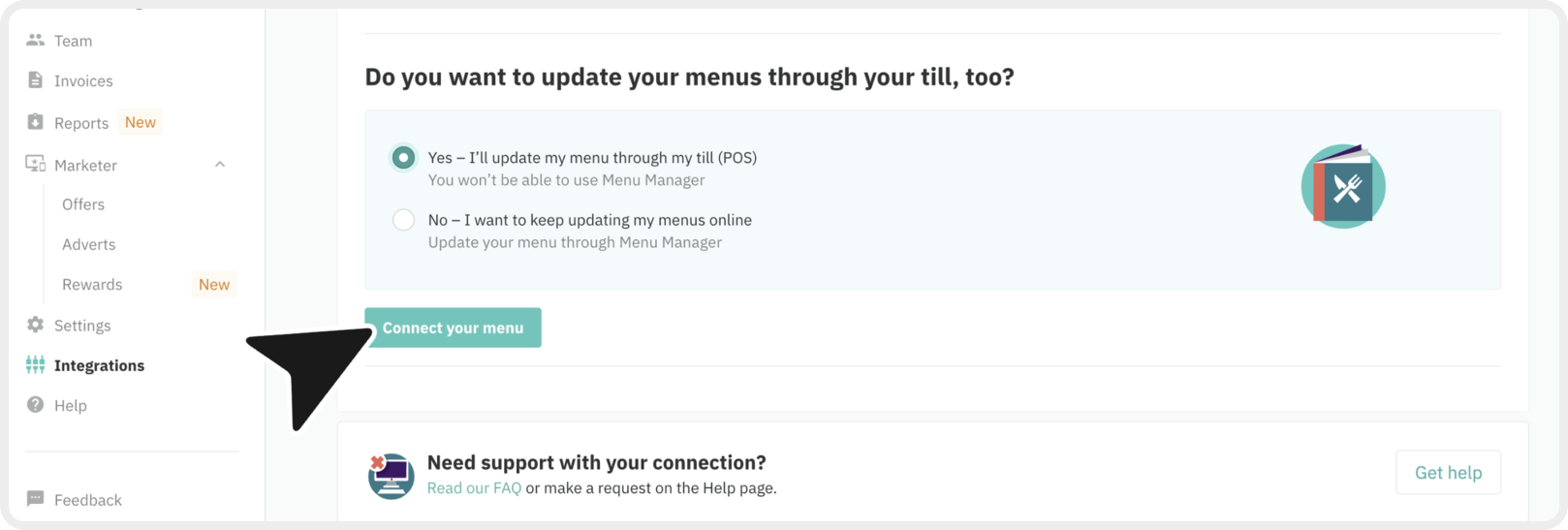
- Select "Connect your menu" to proceed
- You will be shown your Brand ID - this confirms the connection is established
- Note down this Brand ID for reference
9
Publish Your Menu
5-10 minPush your menu to Deliveroo
- Publish your menu to Deliveroo following the standard menu publishing process from POS Hub
- Ensure your menu includes images - menus without images will not publish successfully
- Wait for the menu to be processed and approved
If you do not have an image set for your menu, edit it to include one. Your menu will otherwise not publish to Deliveroo
10
Verify Menu Status
1-2 minConfirm menu was successfully published
- Go back to the Integrations page on the Deliveroo Restaurant Hub
- Select the "Check menu status" button
- This will confirm if the menu has been successfully pushed to Deliveroo
11
Connect Orders
1 minEnable order synchronization
- Select the "Connect your Orders (POS)" button
- Your account is now successfully linked
- All new orders will be received by POS Hub
12
Validate Integration in POS Hub
1-2 minComplete the integration setup
- Return to POS Hub and navigate to the Deliveroo integration page
- Click "Integration Complete" to validate the connection
- POS Hub will verify the integration by fetching your Brand ID from Deliveroo
- Upon successful validation, you'll see a confirmation message
Configuration
After completing the onboarding process, you can configure the following settings:
- Menu Sync Settings: Enable automatic menu synchronization to keep your Deliveroo menu up-to-date
- Pricing Options: Configure price adjustments, markups, or round-off options for Deliveroo orders
- Order Settings: Set up order routing, notifications, and acceptance rules
- Store Hours: Manage availability schedules and special hours
- Workload Management: Configure busy and quiet time settings to optimize order flow
- Item Availability: Real-time item availability updates to prevent out-of-stock orders
Additional Notes
- Deliveroo integration supports both delivery and pickup orders
- Menu updates are synchronized in real-time to ensure customers always see current offerings
- Workload management helps optimize order flow during peak and quiet periods
- Menu images are required for successful publication to Deliveroo